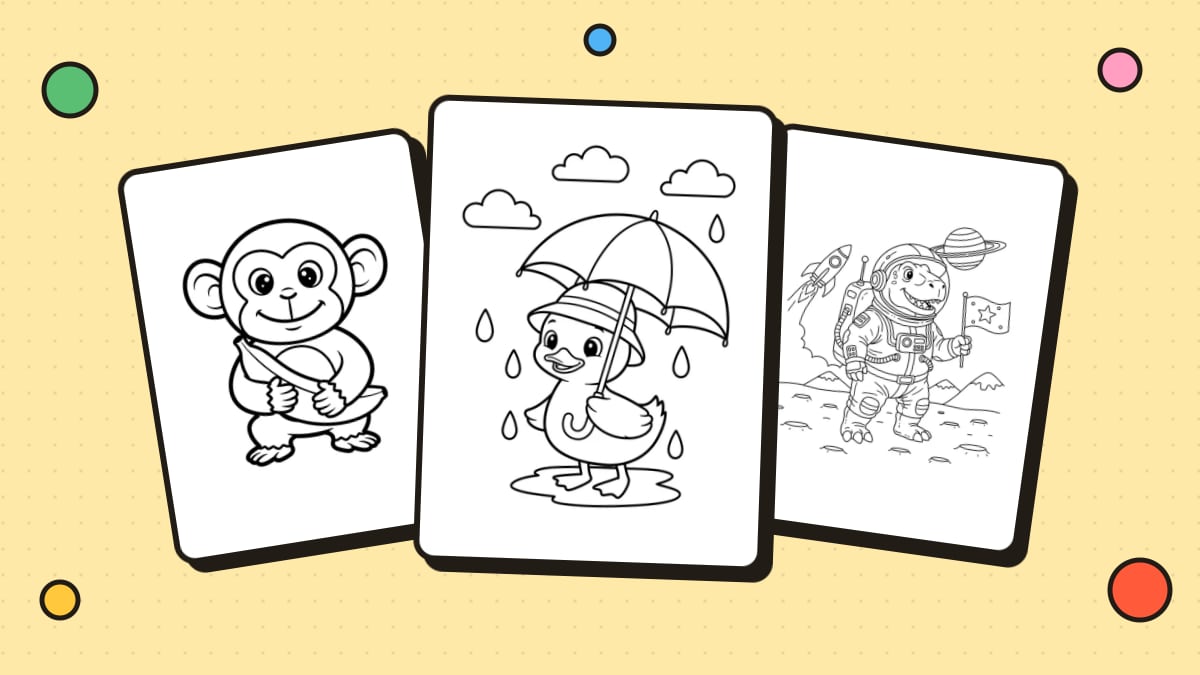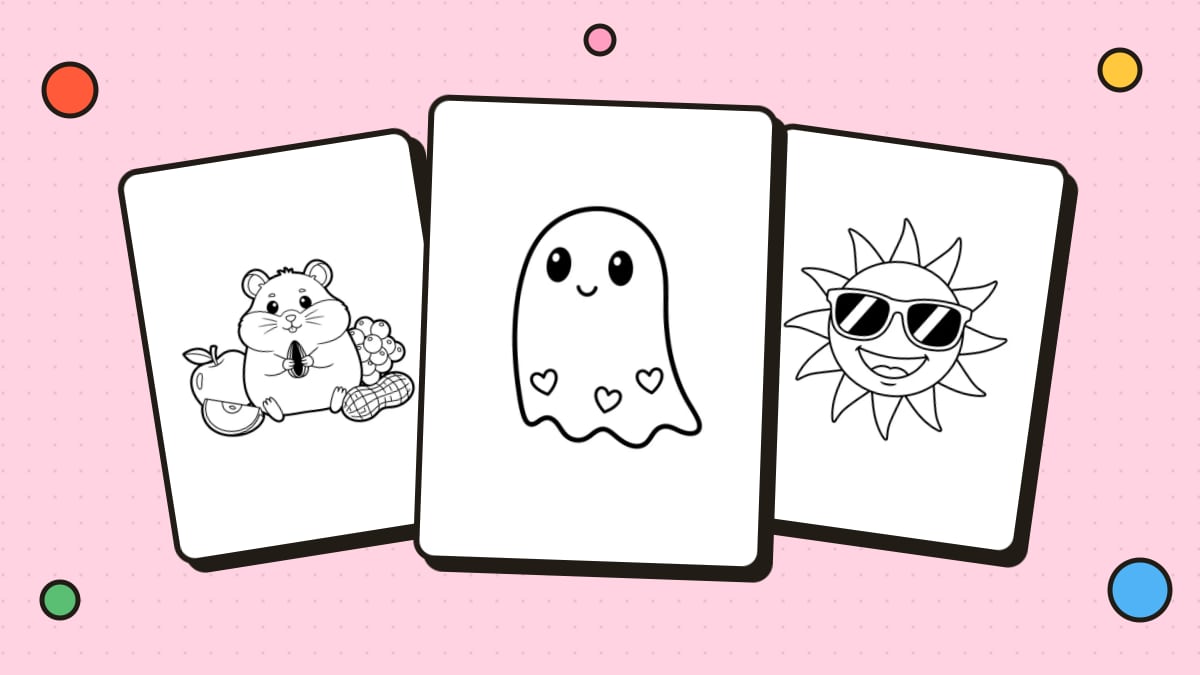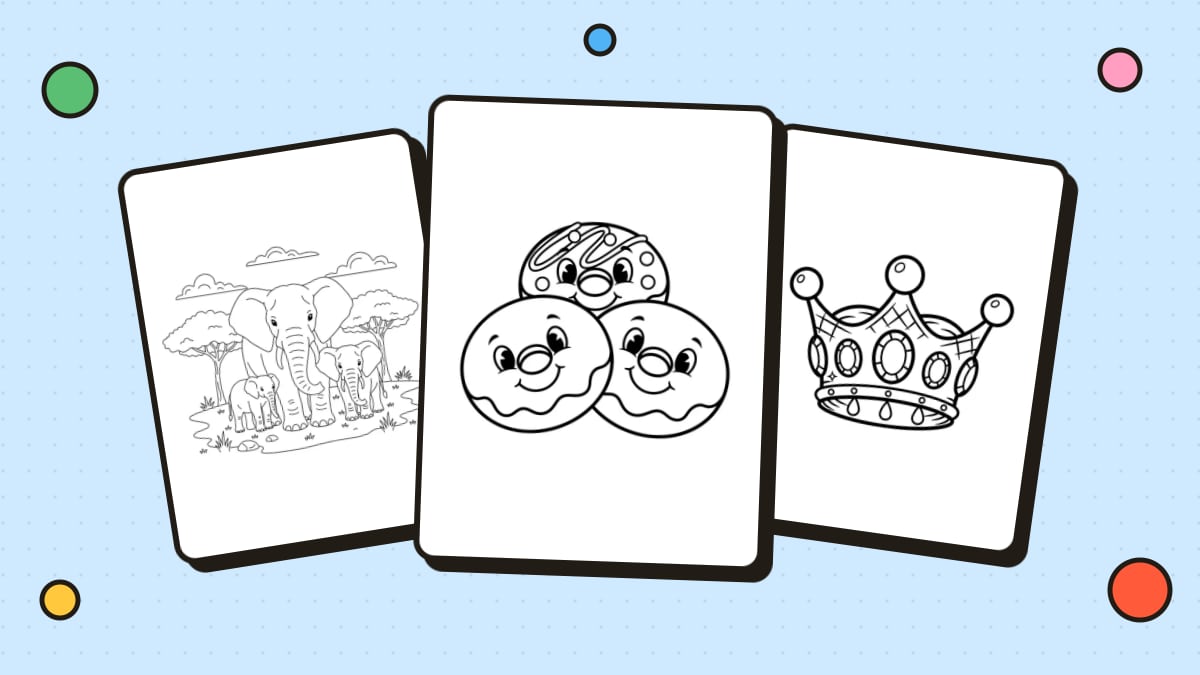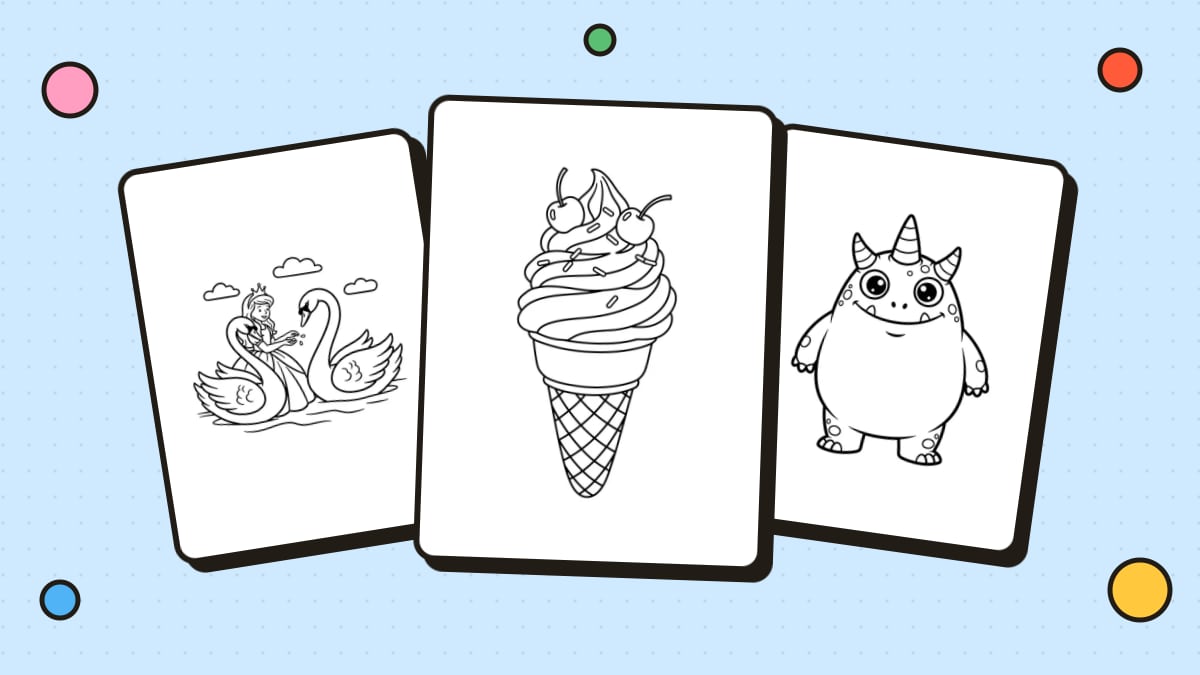
Canva is a free online design tool that makes it easy to put together a coloring book: set up your pages, drop in your line art, design a cover and download everything as one print-ready PDF. Here's how to do it step by step.
What you'll need
- A free Canva account (the free plan is enough for a basic coloring book)
- Your coloring pages as image files (PNG works best)
Don't have pages yet? Download free designs from our coloring pages for personal use, turn your photos into line art with Photo to Coloring Page, or generate custom pages with the AI Coloring Page Generator. For more options, see how to make coloring pages.
Step 1: Create a design at the right size
- On the Canva home page, click Create a design and choose Custom size.
- Enter 8.5 × 11 in for US Letter (or 210 × 297 mm for A4).
- Click Create new design.
If you plan to sell through a print-on-demand service, use the exact trim size they require instead.
Step 2: Design the cover
Your first page is the cover:
- Add a title with a fun, bold font.
- Add a subtitle, like "A Dinosaur Coloring Book" or "For Emma, Age 5."
- Place one of your coloring illustrations as the main image. You can leave it uncolored as a preview, or color a version for the cover.
- Add a simple border or background shapes.
Step 3: Add your coloring pages
- Click the Add page button (the plus icon below the page) to add a new blank page.
- Go to Uploads in the left panel and upload your coloring page images.
- Drag an image onto the new page and resize it to fill the page, leaving a margin of at least 0.5 inch on all sides.
- Repeat for every page.
Tips:
- Turn on rulers and guides (in the View or File menu) to keep margins consistent.
- If your images have a white background, they'll blend into the page. If they have a colored or transparent background, check that the lines are black and the background is white.
Step 4: Add extra pages (optional)
- "This book belongs to" page with a line for a name
- A test page with small squares to try out colors
- Blank drawing pages at the end
- Page numbers using a small text box at the bottom of each page
Step 5: Download a print-ready PDF
- Click Share in the top right, then Download.
- Under File type, choose PDF Print for the best print quality.
- Select all pages and click Download.
Step 6: Print and bind
Print single-sided so markers don't bleed through onto the next design, then bind your book with staples, a hole punch and ribbon, or binder rings. Copy shops can add spiral binding. Our guide on how to make a coloring book covers paper and binding options in detail, and how to print coloring pages covers printer settings.
Can I use Canva elements in my coloring book?
Canva has many line-art graphics you can use in your designs. If you plan to sell your coloring book, read Canva's content license carefully: there are rules about how its elements can be used in products for sale, and selling them mostly unchanged is generally not allowed. Using your own artwork avoids the issue entirely.
Thinking of selling it?
Before you sell a coloring book made in Canva:
- Only use artwork you have the rights to sell. Free printable pages from websites, including ours, are usually for personal and classroom use only.
- Never include characters from movies, TV or games.
- Follow your platform's specs for trim size, margins and bleed.
Read more in our guide on how to sell coloring pages.
FAQ
Can I make a coloring book on Canva for free?
Yes. The free plan lets you create a custom-size design, upload images, add pages and download a PDF.
What size should a coloring book be in Canva?
Use 8.5 × 11 in (US Letter) or A4 for home printing. For print-on-demand, use the trim size the platform requires.
How do I download my Canva coloring book for printing?
Click Share, then Download, choose PDF Print as the file type, select all pages and download.
Can I sell a coloring book I made on Canva?
Possibly, but only if you have the rights to every image in it and you follow Canva's content license and your sales platform's rules. Using your own original artwork is the safest choice.